
Cargo Installation
Windows GNU Toolchain
- The Windows GNU toolchain depends on the GCC-based build toolchain and is relatively cumbersome to set up. If you want a simpler build path, use the MSVC toolchain instead. Otherwise, follow these steps:
Click here to download the build tool installer.
Double-click
rustup-init.exeto open the installation window; input2, then inputy, then input2again, and then inputx86_64-pc-windows-gnu. Finally, press Enter all the way to start the installation until you see the outputRust is installed now. Great!- Note: Do NOT simply press Enter to install MSVC directly, as this will cause numerous issues in subsequent builds!
Go to the MSYS2 official website to download the MSYS2 installer. After downloading, double-click to open it. If you have no special requirements, proceed by clicking "Next" all the way until prompted with
Finished the MSYS2 Setup. Click the button in the lower right corner, and a window will pop up. Enter the following commands, and press Enter all the way during the installation process.shellpacman -Sy && pacman -Syu pacman -S mingw-w64-x86_64-toolchainOpen Command Prompt (cmd) or PowerShell and run
cargo -Vto check whether the installation succeeded. If a version number is shown, the installation was successful. Otherwise, refer to the Windows troubleshooting section.Modify the environment variables as shown in the following images:
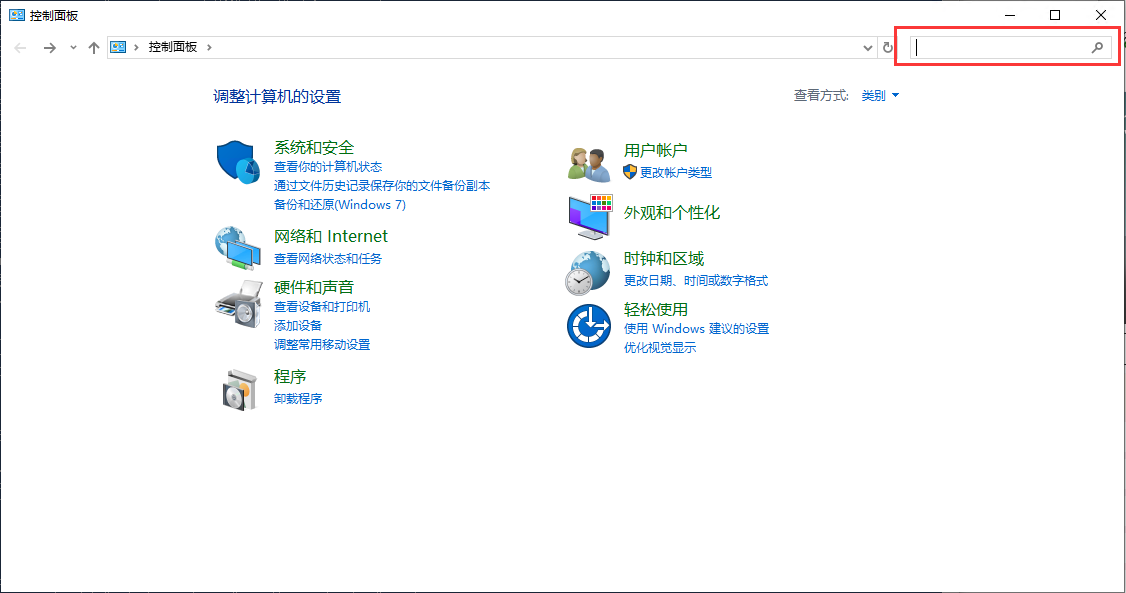
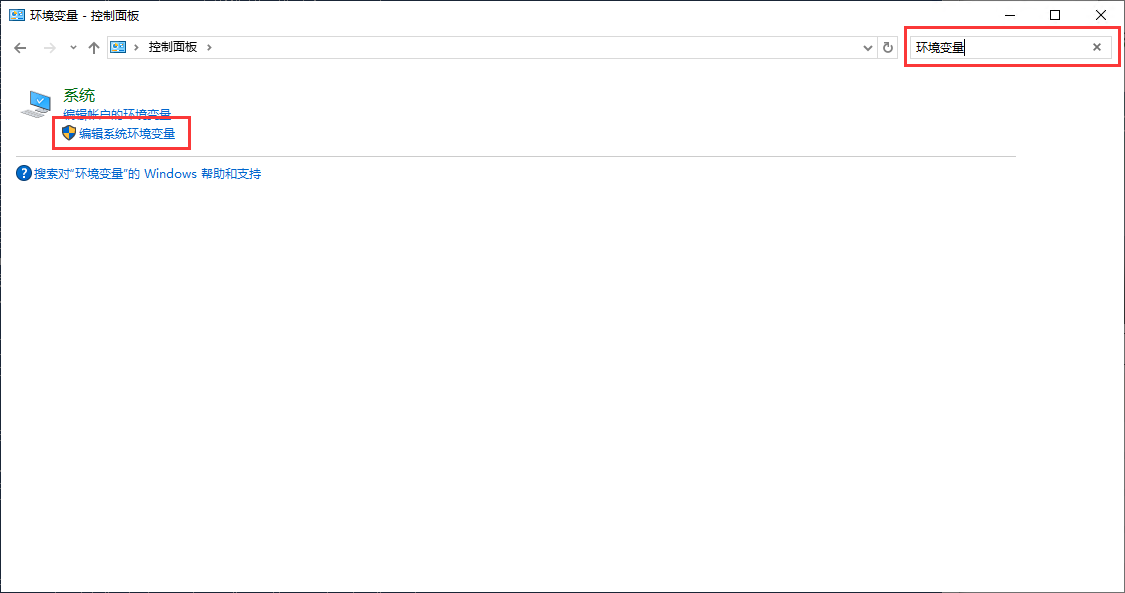
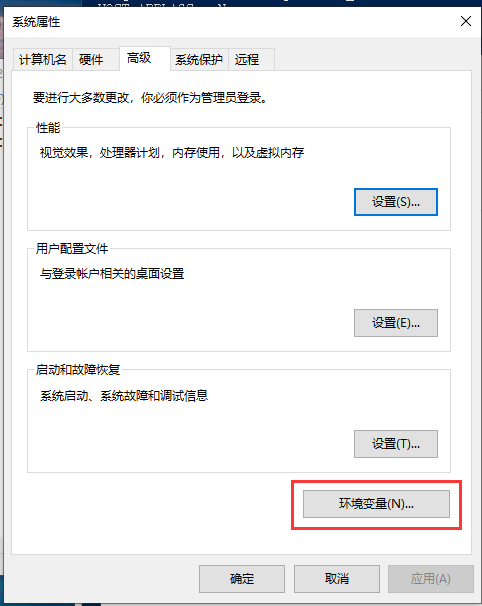
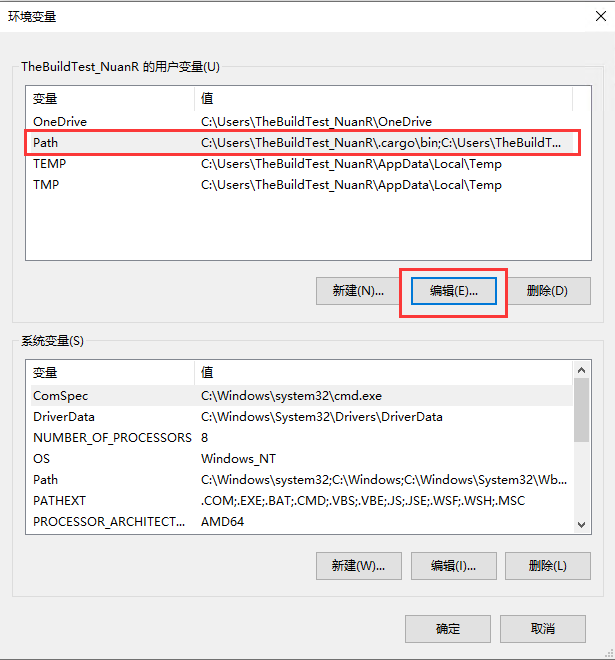
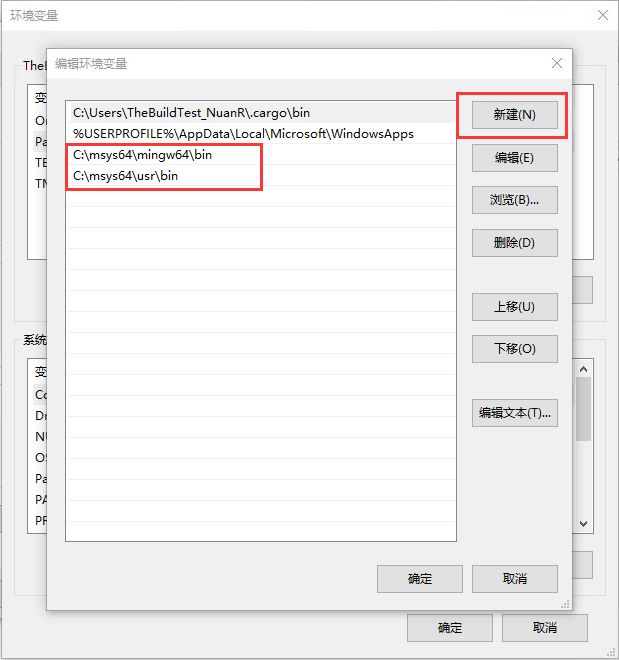
Open Command Prompt (cmd) or PowerShell and run
gcc -vto check whether the installation succeeded. If a version number is shown, the installation was successful. Otherwise, refer to the Windows troubleshooting section.
Windows GNU Toolchain Common Issues
Q. The downloaded build tool flashes and exits when double-clicked after a successful download.
A. Please do not change the file name.
Windows MSVC Toolchain
- The Windows MSVC toolchain relies on the Microsoft Visual C++ build toolchain and is relatively simple (as long as you don't want to manually build the static library). Follow these steps:
- Click here to download the build tool installer.
- Double-click
rustup-init.exeto open the installation window; input1. Follow the prompts fromVisual Studio Installerto complete the installation, then return to therustupconsole and press Enter until you seeRust is installed now. Great! - Reopen
Visual Studio Installer, clickModifynext toVisual Studio Community 2022, search forSDKunderIndividual components, and installWindows 11 SDK(you may use another SDK version as needed). - Open
x64 Native Tools Command Prompt for VS 20**, entercargo -Vto verify the installation. If a version number is returned, the installation is successful. Otherwise, refer to the Windows MSVC Toolchain Common Issues section.
Windows MSVC Toolchain Common Issues
Q. The downloaded build tool flashes and exits when double-clicked after a successful download.
A. Please do not change the file name.
Linux
Debian-based Linux Systems
- Open a terminal and enter the following commands:
sudo apt update
sudo apt install cargo -y- If no errors occur, run
cargo -Vto check whether a version number is printed. If not, refer to the Linux troubleshooting section.
Other systems to be added.
Linux Common Issues
Q. When entering cargo, it outputs bash: /usr/bin/cargo: No such file or directory or cargo: command not found.
A. Cargo was not installed successfully. Please check if other information was output after the installation completed.
macOS
- Open the terminal and run the following command:
curl --proto '=https' --tlsv1.2 -sSf https://sh.rustup.rs | sh- When prompted, input
1and press Enter until you seeRust is installed now. Great! - Open the terminal, enter
cargo -Vto verify the installation. If a version number is returned, the installation is successful. Otherwise, refer to the macOS Common Issues section. - Go to Xcode Downloads to download Xcode. After downloading, extract and move it to
/Applications. Then go to Command Line Tools Downloads to download the command line tools. After downloading, double-click to install and follow the prompts.
Other systems to be added.
macOS Common Issues
Q. Timeout when installing Cargo.
A. Please check your network environment.
Q. Running cargo outputs zsh: command not found: cargo.
A. Cargo was not installed successfully. Please check if other information was output after the installation completed.